Objo Studio v26.7.3 Released
I'm really happy to announce that Objo Studio v26.7.3 is out now. The IDE should prompt you to update automatically but you can download it here manually as well.
Firstly, all known and reported bugs have been fixed (35). As usual, we don't ship a new release until we regard it as bug-free.
This release adds a whopping thirty new features, some of which I think are pretty awesome and I'd like to mention them here. You can see all changes in the changelog.
Find bottlenecks with the new Profiler
Finding the slowest part of an app no longer needs to involve guesswork. Objo Studio’s new Profiler runs command-line and desktop projects using the optimised Release configuration, then shows exactly where the app spent its time.
The Hot Methods view reports call counts together with total, self and average execution times, while the Call Tree reveals how those costs build up through the app. Double-click any Objo method to jump directly to its source. Studio also retains multiple sessions for comparison and can export results as JSON or CSV.
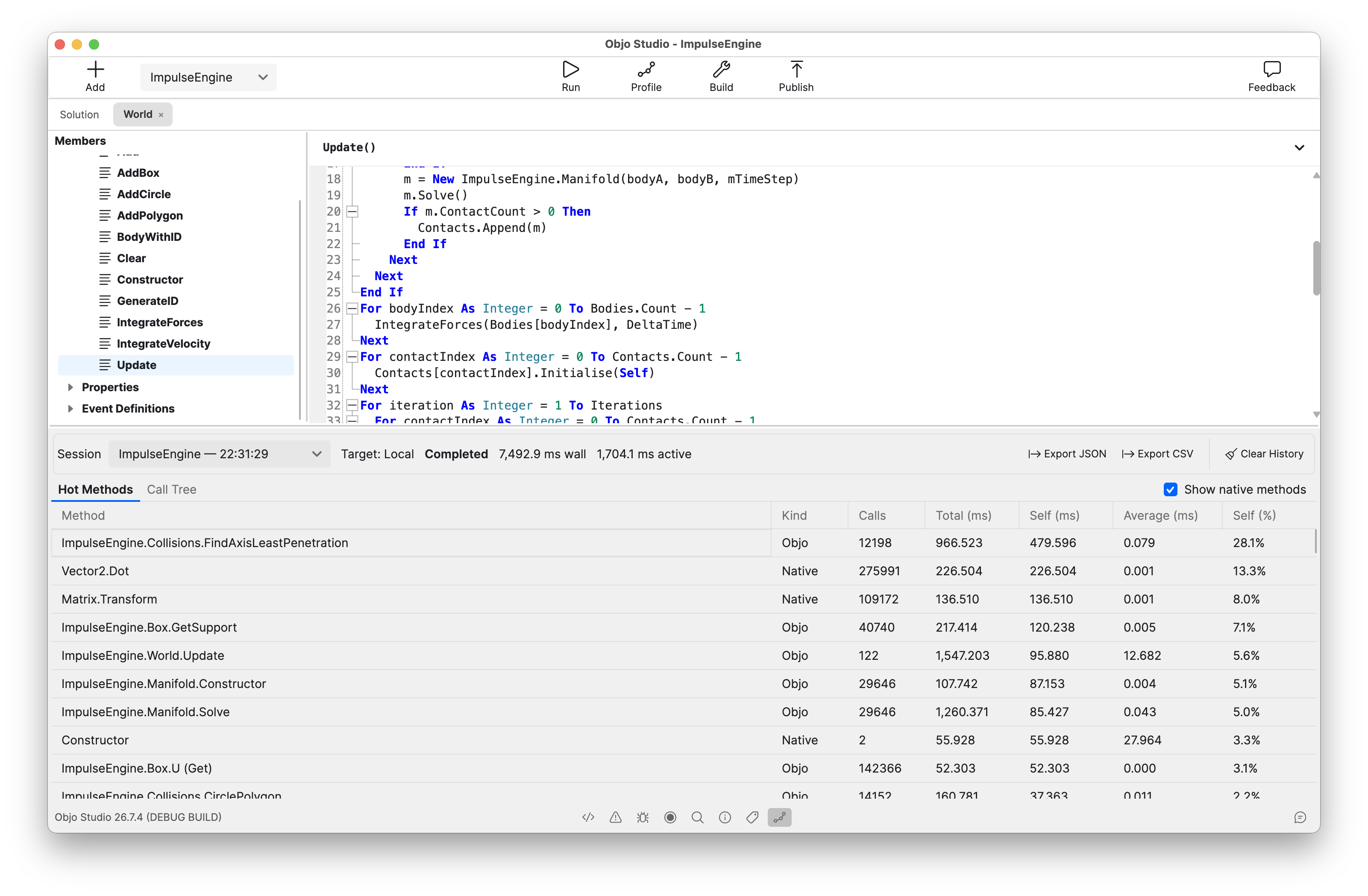
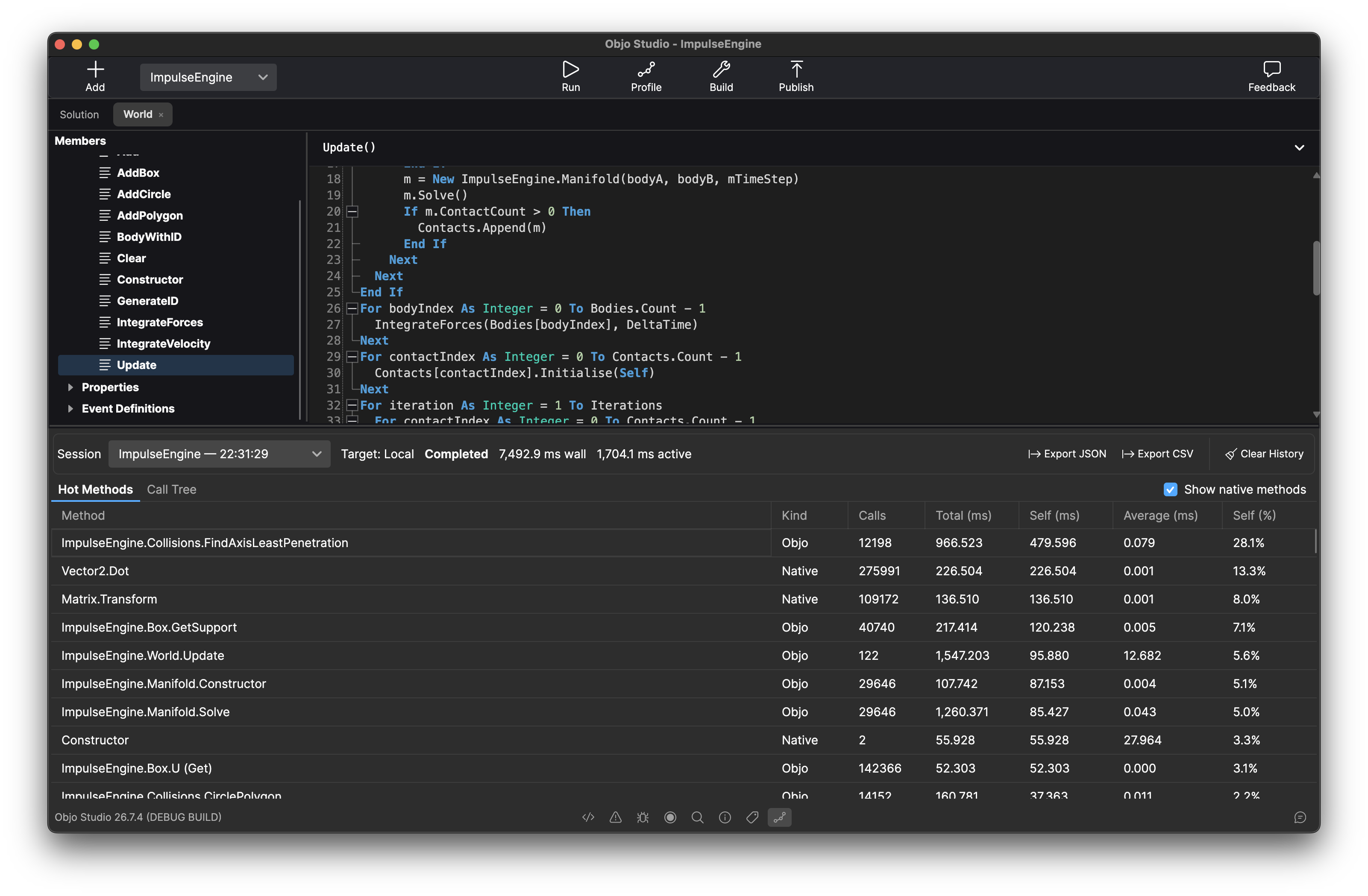
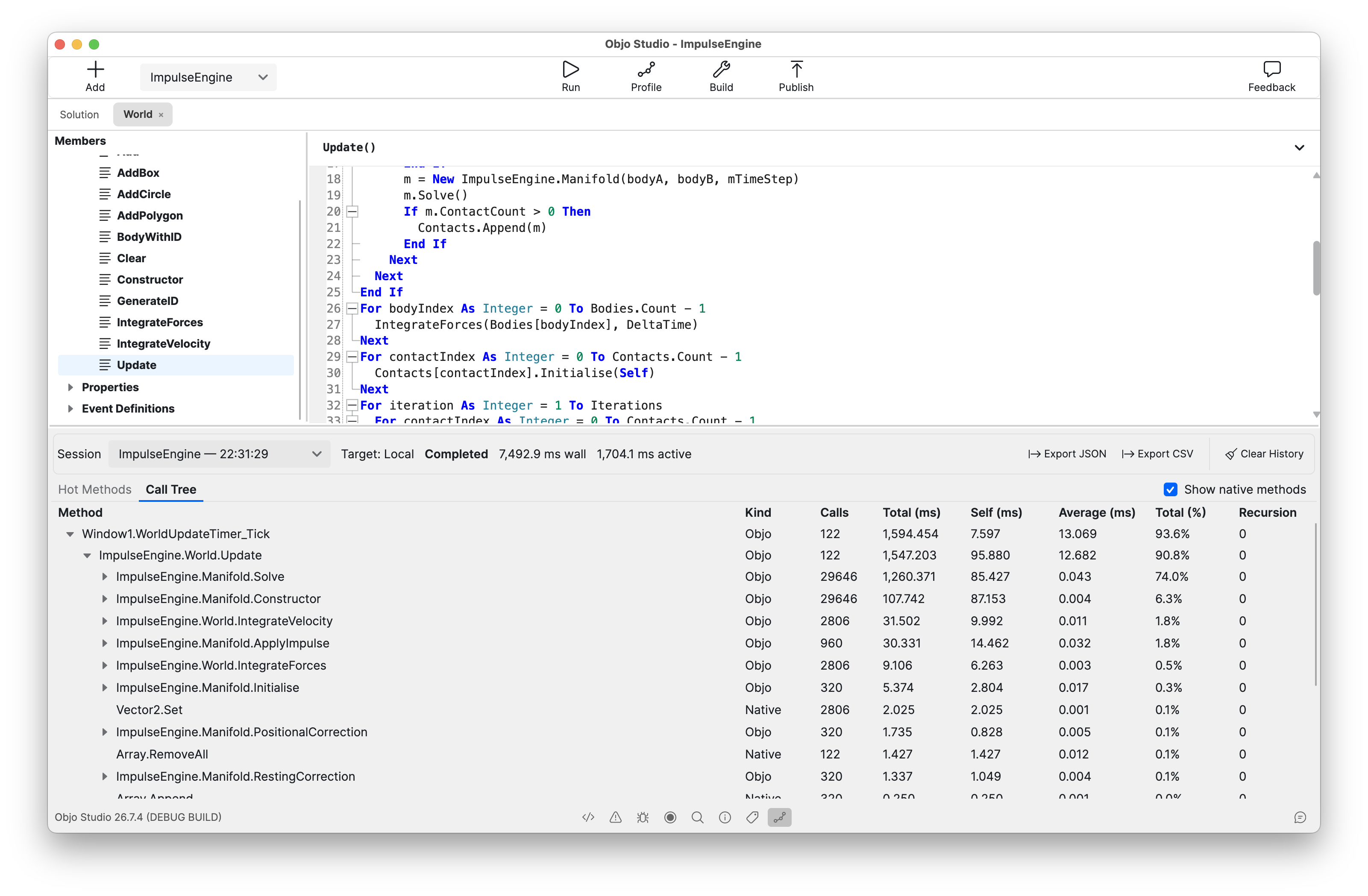
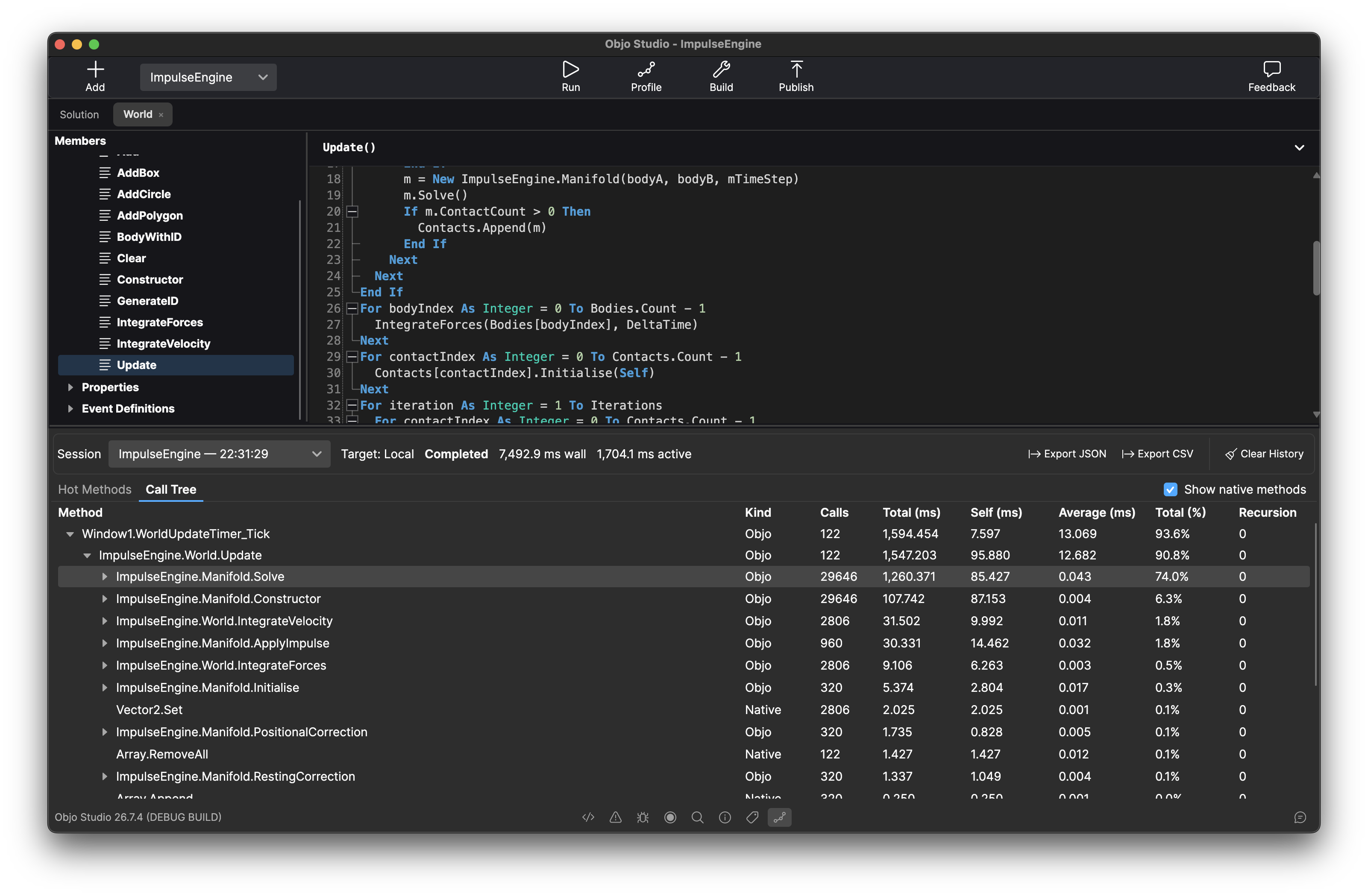
Profiling works both locally and through the Remote Debugger, making it possible to measure an app on the machine where it will actually run. Even stopped sessions and runs ending in a runtime error can provide the results collected up to that point.
Profiling requires an Objo Studio licence. It is included in the same licence that enables Build and Publish. There is no separate profiling tier. Editing, running and debugging remain free. Existing license holders gain access to profiling immediately.
First-class SVG support
Objo Studio 26.7.3 adds first-class SVG support throughout the desktop image pipeline.
SVG files can be imported as project image assets and used by Picture, ImageViewer, Canvas backdrops and toolbar icons. They remain vector-backed while being displayed, so the same artwork stays beautifully sharp at different sizes and on HiDPI displays. There is no need to prepare separate @2x and @3x versions.
Apps can also create SVG pictures from files, raw bytes or SVG markup using Picture.FromSVG(). When a bitmap really is required (for example, for a GameCanvas texture or platform tray icon) Objo rasterises a copy at the appropriate scale while preserving the original vector picture.
Charts join in too: Chart.ToSVG() can export a chart as resolution-independent SVG markup, making it ideal for reports, websites and print.
Cross-platform tray icons
The new TrayIcon class lets desktop apps add a status icon to the macOS menu bar, the Windows notification area or a compatible Linux desktop.
A tray icon can display a tooltip and an existing Objo Menu, with changes to menu text, checked state, visibility and child items reflected automatically. Apps can provide separate light- and dark-mode artwork, as well as a monochrome macOS template icon that the operating system recolours for the current appearance.
Showing a tray icon can also keep an app running after its final window closes. This makes windowless utilities, background services, synchronisation tools and other tray-only applications possible using the same API on all three desktop platforms.
A searchable system-symbol catalogue
Choosing an icon for a toolbar item is now much easier. The old list has been replaced by a searchable visual catalogue containing hundreds of curated vector system symbols.
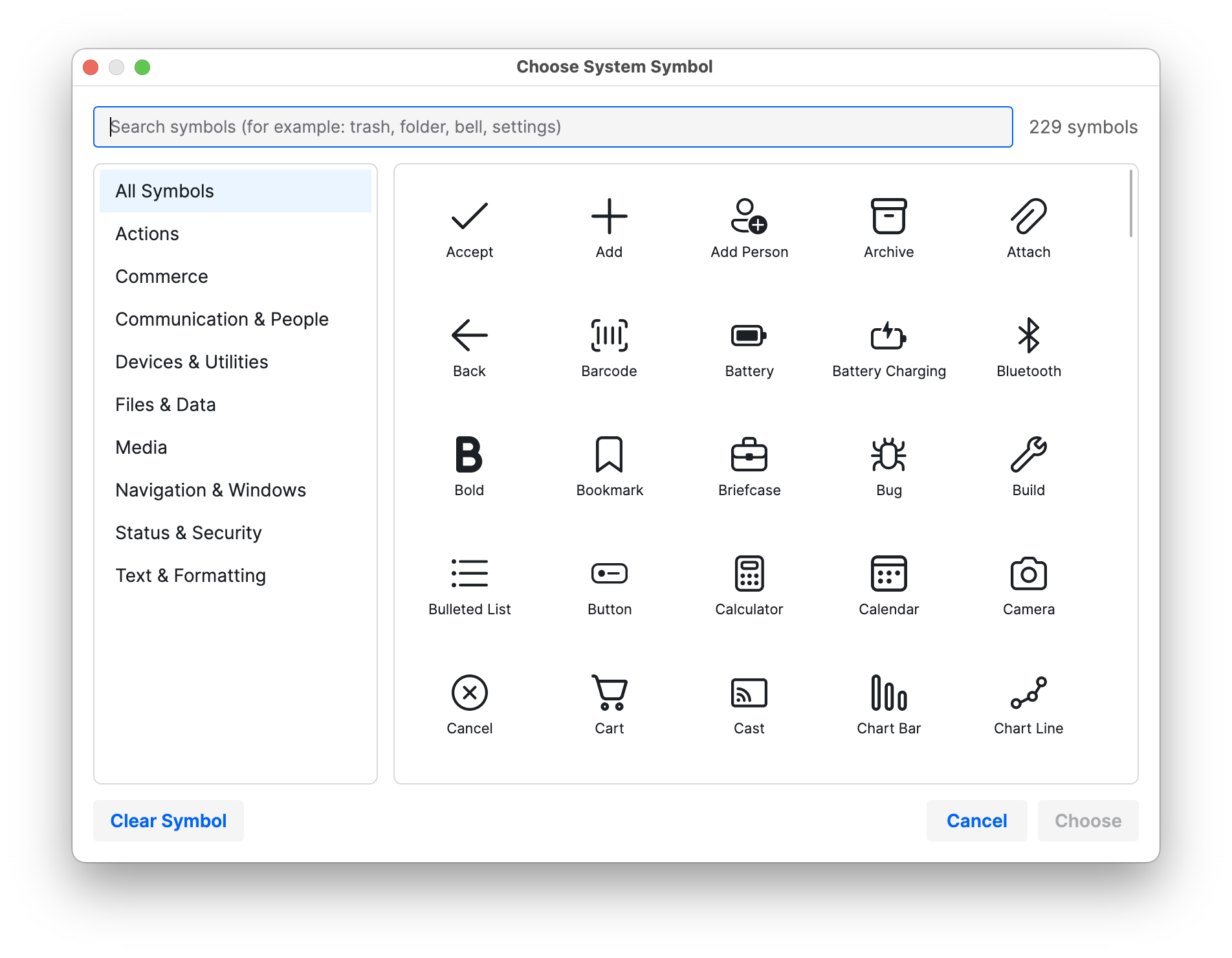
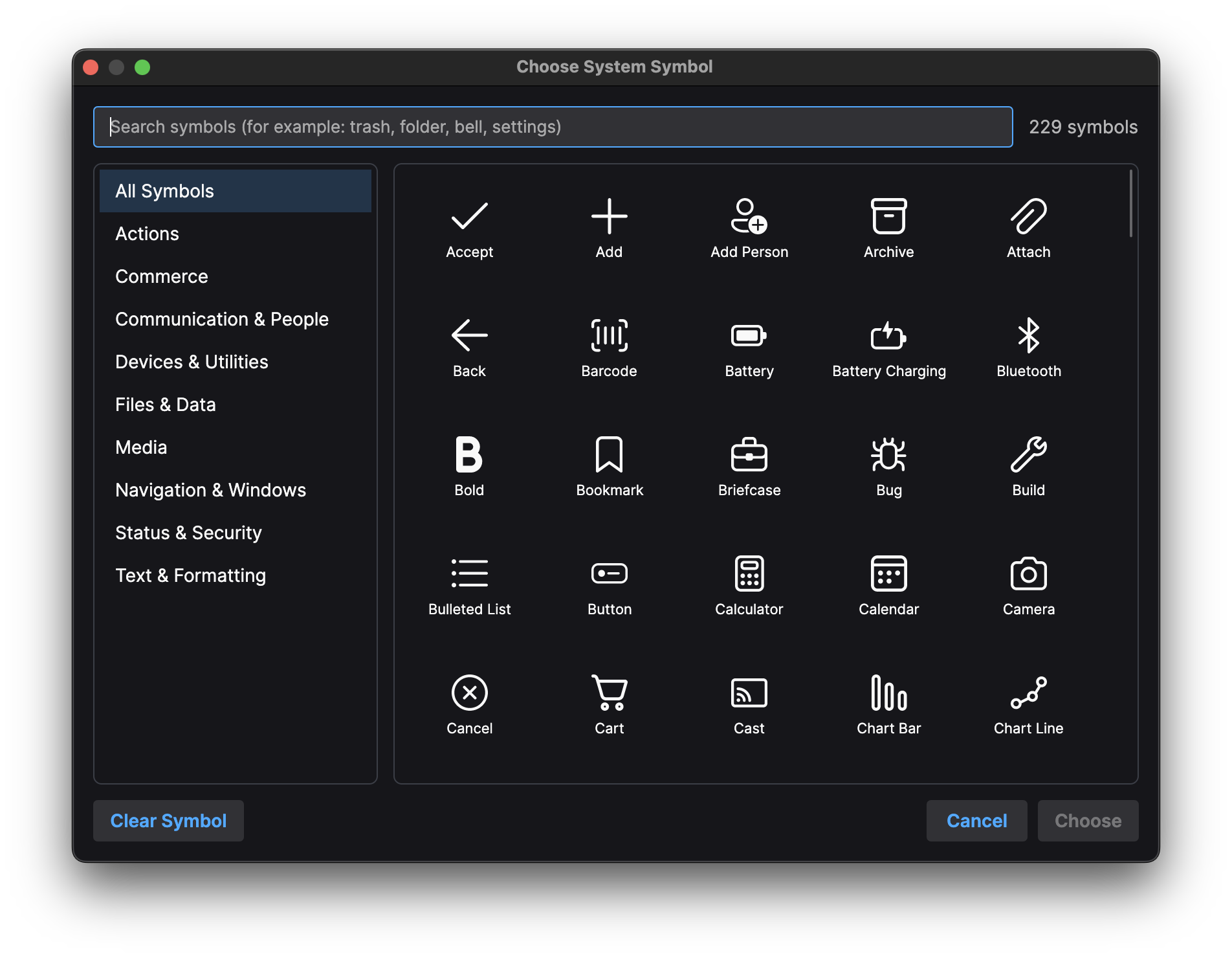
Symbols are displayed in a preview grid and organised into categories such as Actions, Media, Files & Data, Navigation and Status & Security. Search understands common terms as well as symbol names, so searching for words such as “trash”, “folder”, “bell” or “settings” quickly finds the right artwork. Recently selected symbols are also kept close at hand.
These are semantic symbols such as SystemSymbol.Save, SystemSymbol.Search and SystemSymbol.Notification, giving apps a consistent, scalable set of familiar icons without requiring developers to source and manage every piece of artwork themselves.
Debugger Watches
The debugger now has a dedicated Watches view for keeping an eye on the values that matter most.
A watch is a saved Objo expression such as count, player.Health or subtotal * taxRate. Studio evaluates the complete watch list whenever execution pauses, after each debugging step and whenever a different call-stack frame is selected. Results include the value and its type, with objects, arrays and dictionaries available for further inspection.
Expressions can be entered manually or added directly from the Variables view. They are saved with the solution, work with both local and remote debugging, and provide a useful little dashboard that follows you throughout a debugging session.
Automatic evaluation is deliberately read-only. If an expression might execute user code or change the app’s state, Studio displays <may execute code> instead. You can still choose Evaluate once when you intentionally want to run it.
Colour-coded collision masks for GameCanvas
GameCanvas can now create efficient, colour-coded collision masks from PNG images.
Each pixel can describe a different part of the game world: green might represent solid ground, blue could be water, red a hazard and transparent pixels empty space. The mask is decoded once, after which ColourAtPoint() can answer world-coordinate queries using a simple array lookup. This makes it practical to perform several terrain checks every frame without repeatedly reading or copying image data.
Collision masks use world coordinates, so their results are unaffected by camera movement. Their position and scale can also be adjusted, allowing a single mask pixel to represent one or several world points.
Masks deliberately use canonical 1x PNG artwork rather than display-scale images. This keeps collision behaviour deterministic across standard and HiDPI displays. The bundled Collision Mask Platformer example demonstrates how masks can be used for terrain, slopes, platforms and hazards.
Summary
Objo Studio 26.7.3 is a big release and adds plenty of polish throughout the IDE. We hope you enjoy it.