Objo Studio v26.7.6 Released
As always, all known and reported bugs have been fixed. In addition to several new additions and improvements to the IDE, this release brings three big new features that I'd like to call out separately because I think they're awesome:
- IDE Scripting
- Git Awareness
- Conditional compilation
The full changelog detailing bugs fixes and new features is here and you can download it here.
IDE Scripting: automate Studio with Objo
This version of Objo Studio introduces IDE scripts. These are standalone .objoscript files that automate repetitive development work using ordinary Objo code.
IDE scripts are useful whenever you find yourself performing the same sequence of actions repeatedly. A script can inspect the current solution, transform selected code, create or reorganise source files, add standard headers, compile a project and report diagnostics, open documents, or run the active project. Frequently used scripts can live in your personal IDE Scripts folder and appear directly in Studio’s Scripts menu.
IDE Scripts the full Objo language. You can use classes, generics, collections, JSON, regular expressions, async code, error handling, introspection and more. Studio adds a dedicated, strongly typed API for interacting with the IDE:
Var solution As StudioSolution = Studio.Solution.Current
Studio.Commands.SaveSolution()
Because this is a real API rather than a collection of magic strings, scripts are discoverable, checked by the compiler and easier to maintain as they grow. Studio provides live diagnostics and lets you fully debug a script with breakpoints.
Considerable engineering has gone into making this useful without making Studio fragile. Every invocation runs in a fresh child process and communicates with Studio through a private, authenticated and versioned protocol. Source edits are atomic and version-checked, so a script cannot silently overwrite code that changed after it was read. If a script crashes, hangs or ignores cancellation, Studio can terminate its host process and carry on running.
The scripting API is independently versioned, while potentially dangerous features such as filesystem, networking and shell access are deliberately excluded from the IDE script standard-library. Scripts still have a rich general-purpose language, but their interaction with Studio happens through a narrower API than full Objo apps.
How this differs from Xojo
Xojo’s IDE scripting has long been useful, but it's built on XojoScript: a separate scripting engine supporting the Xojo language, a subset of functions and special IDE commands. Many actions are dispatched using string names, such as DoCommand("SaveFile"), and Xojo’s documentation notes that XojoScript cannot use built-in Xojo classes. Its IDE Script Editor also does not provide debugger access.
Objo Studio takes a different approach. There is no second, cut-down scripting grammar to learn: an IDE script is normal Objo code. The result is IDE automation that might start with a five-line convenience script but can comfortably grow into a dependable personal development tool.
Git Awareness: source control built into Studio
Objo Studio now includes Git integration for VCS-friendly .objosln solutions. Git is bundled with Studio, so you do not need to install or configure it separately to create a repository, inspect changes, make commits or work with local branches.
In the lower left corner of the IDE, the status bar shows the current branch and whether the solution is clean or changed. Its tooltip provides more detail, including the repository location, upstream status, ahead and behind counts and the number of changed logical items. Studio watches the repository in the background, so this information updates as you work or make changes with another Git client.
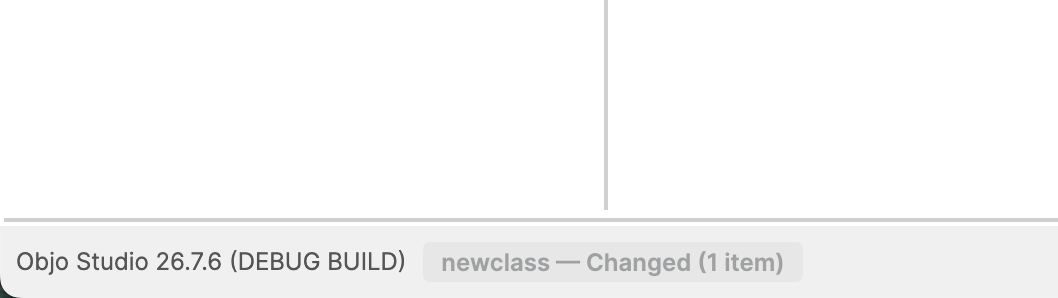
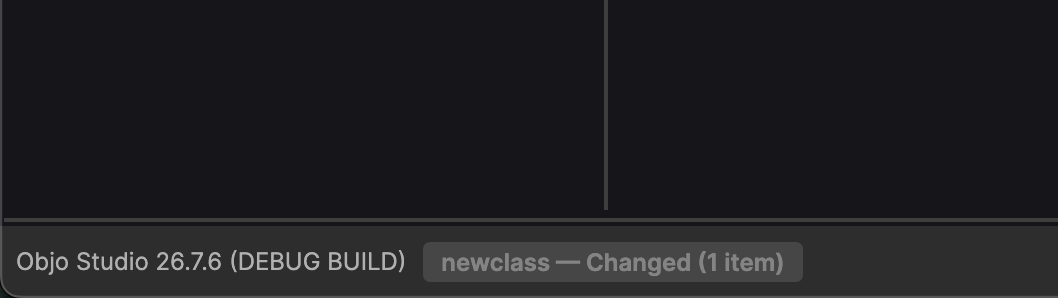
Changes are also visible where they are most useful. The editor gutter marks lines that have been added, modified or deleted since the current HEAD commit, while the Solution navigator decorates changed, renamed and deleted items. These indicators include unsaved editor changes: Studio compares Git’s committed version with the solution currently in memory rather than merely looking at the files on disk.
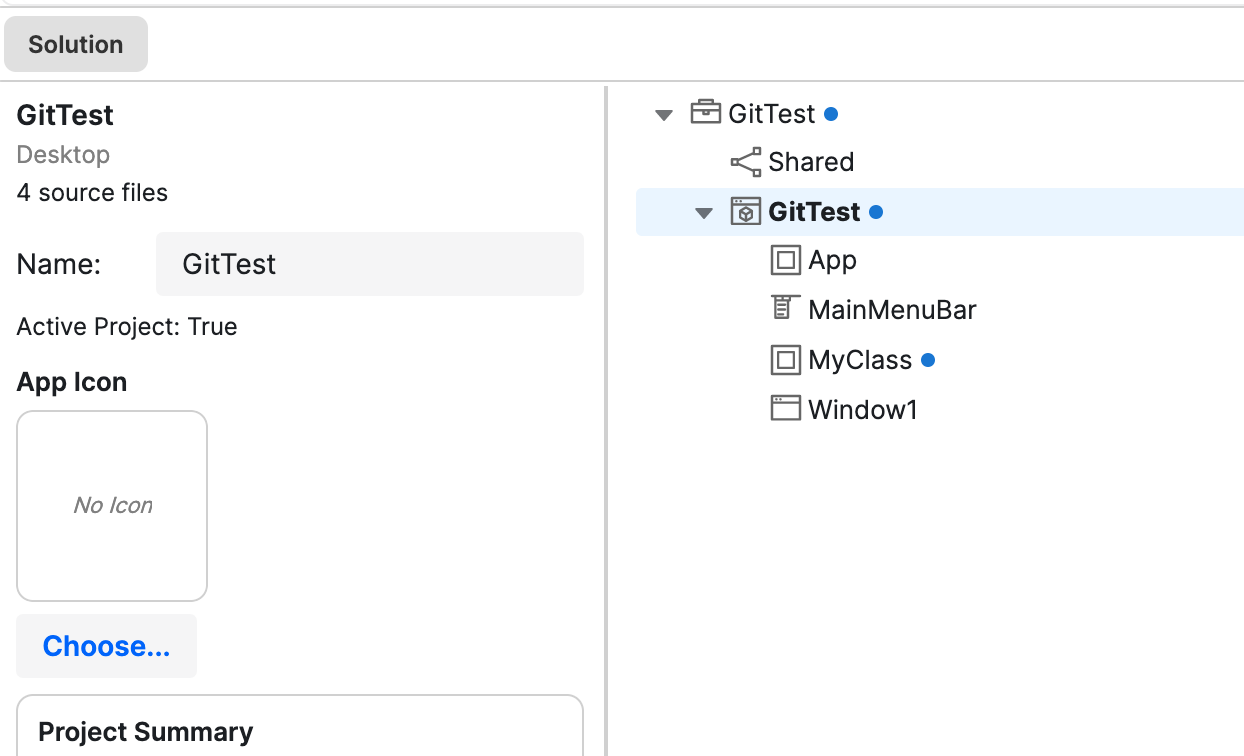
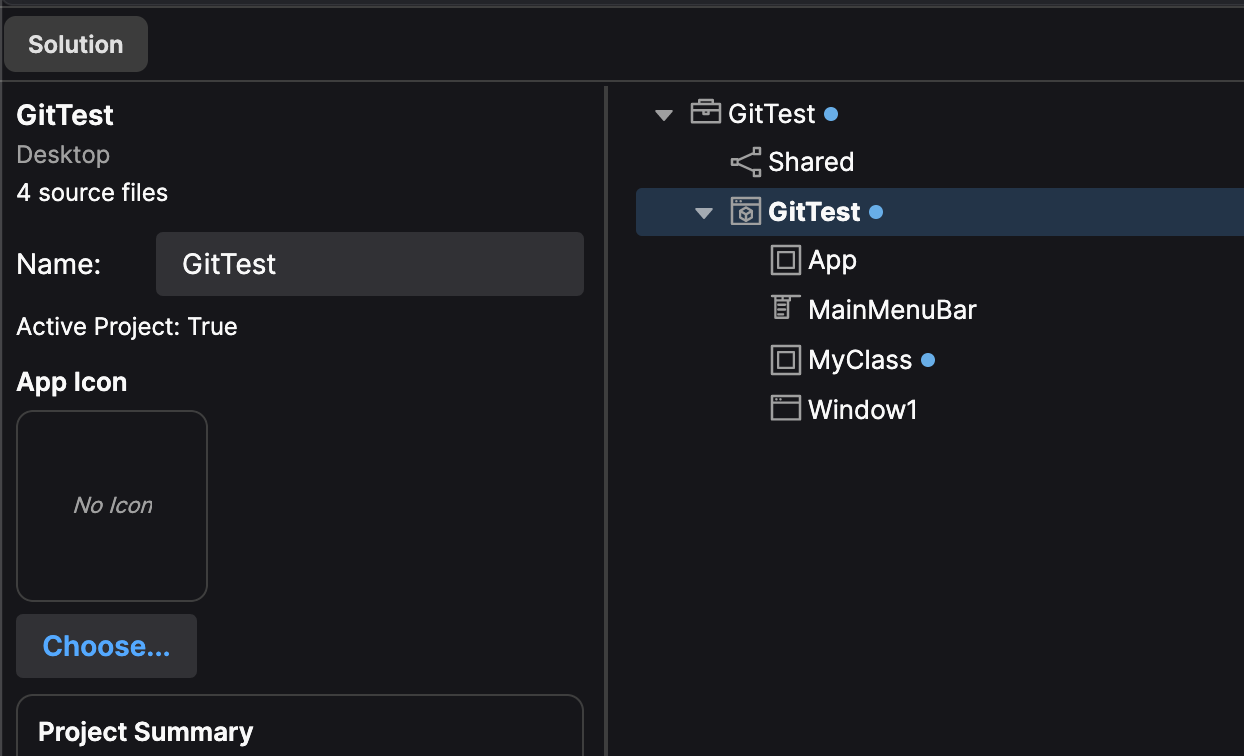
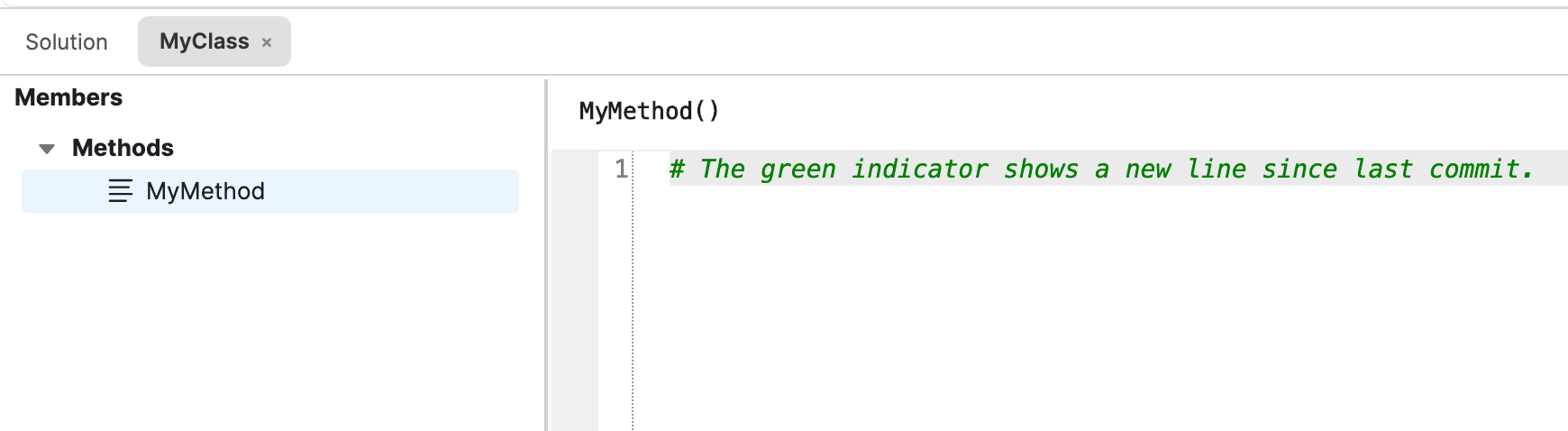
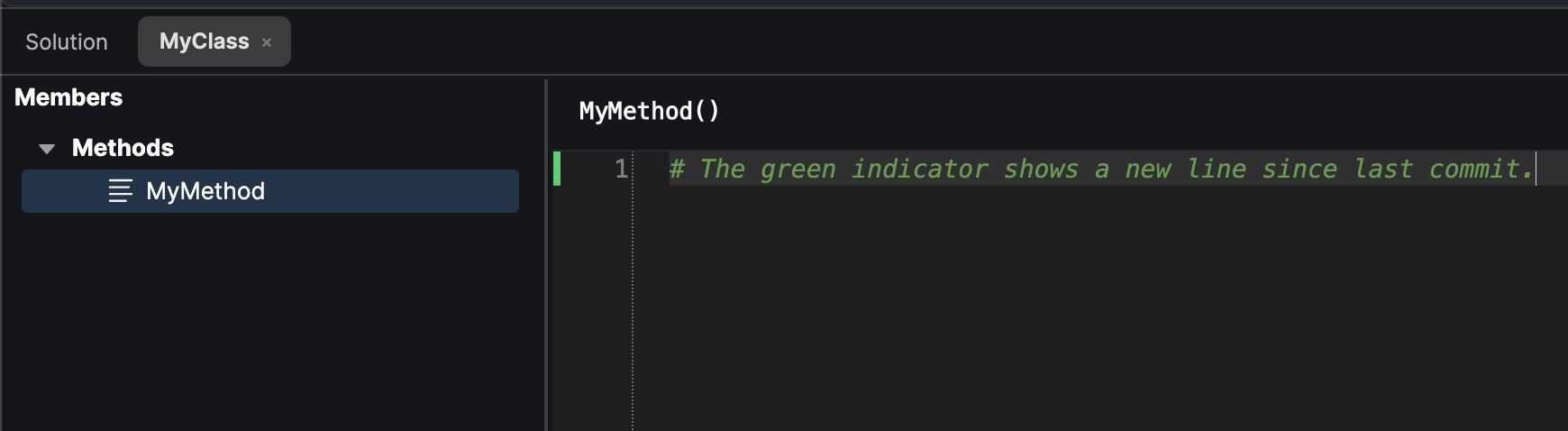
Studio understands the structure of an Objo solution rather than treating it as an arbitrary collection of files. A class, window or other source item may be represented by source code, metadata and designer-layout files inside an .objosln package, but Studio presents and commits these together as one logical item.
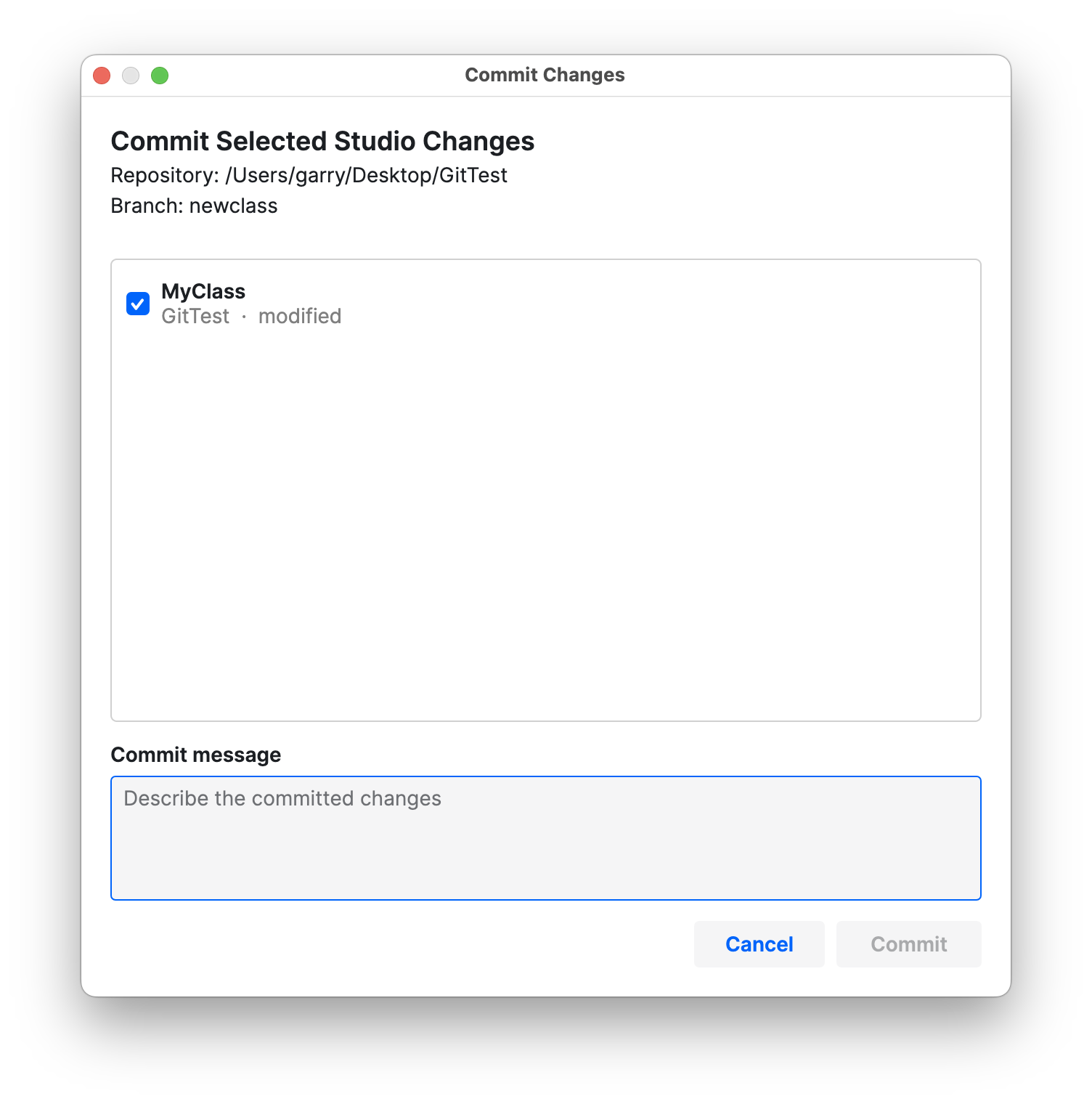
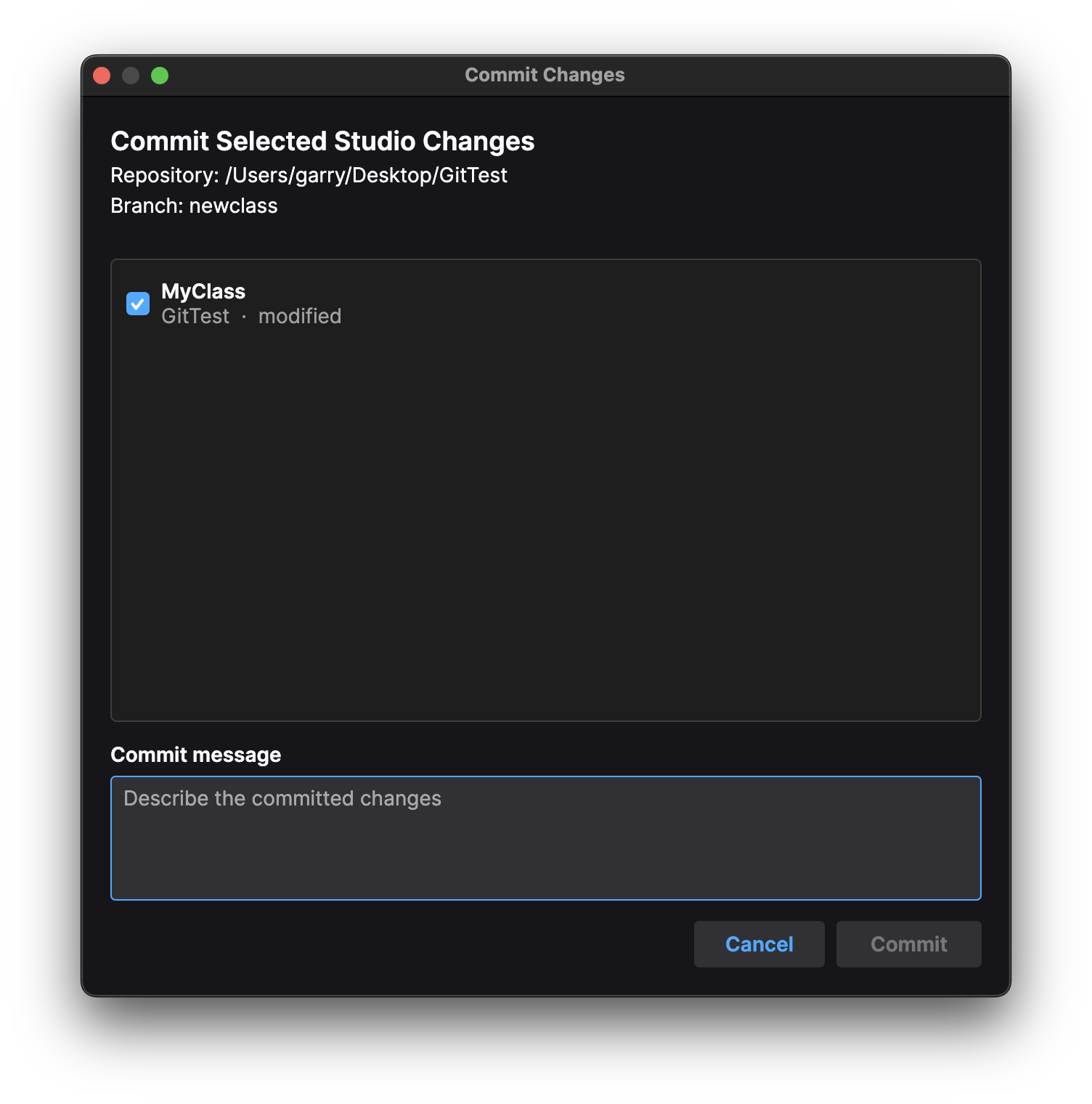
The new Commit Changes dialog lets you select exactly which logical Studio items should be included and enter an ordinary Git commit message. Studio saves and validates the solution, stages only the package paths belonging to your selection and leaves unrelated working-tree changes untouched. Repository commit hooks still run as normal.
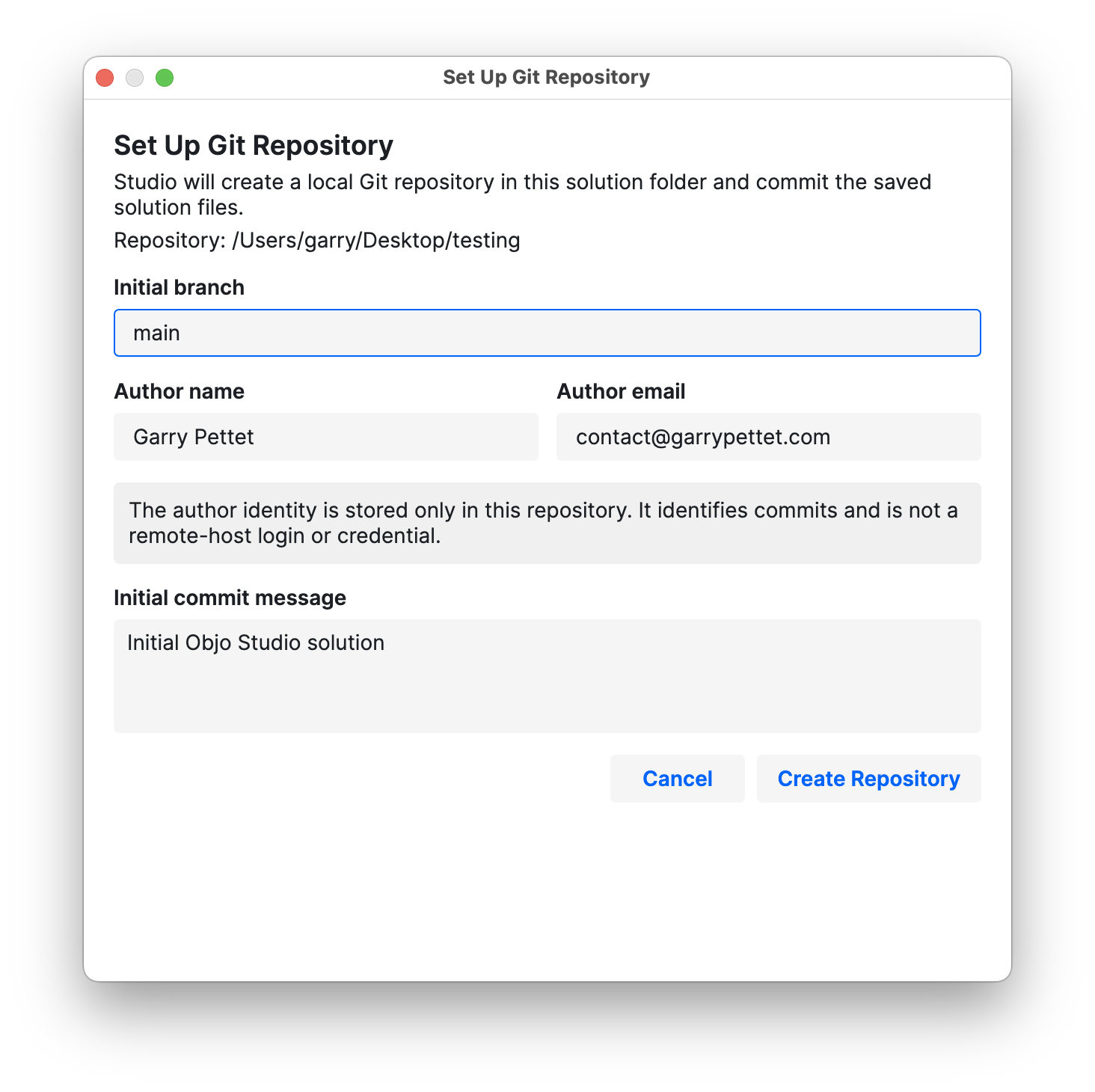
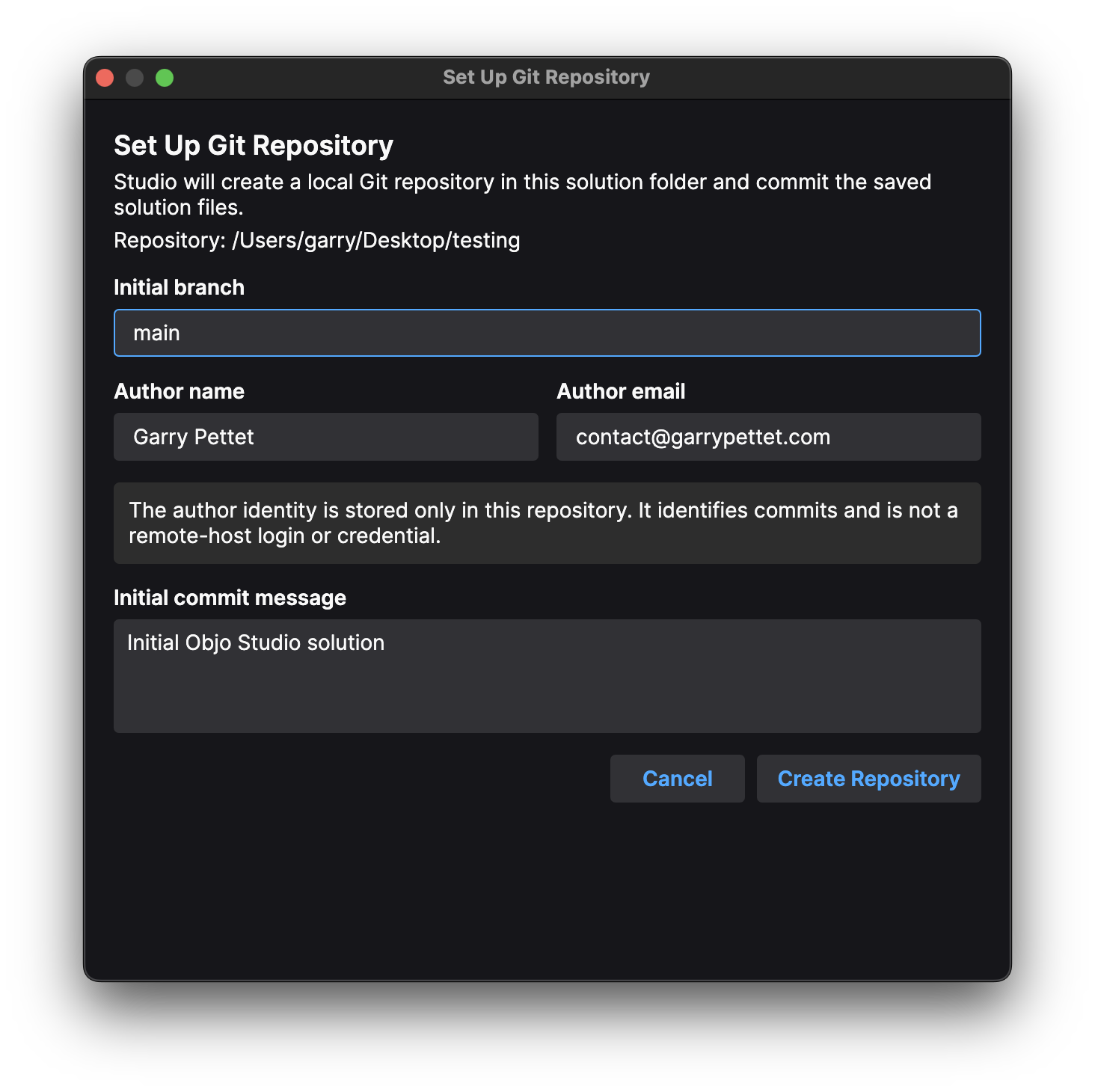
If an existing solution is not yet under source control, you can setup a new repository from within Studio from the menubar. Portable .objo solutions are first saved separately in the VCS-friendly .objosln format. Studio then creates the repository, configures its local author identity and makes the first commit containing only the solution-owned files. Personal .objo user state and unrelated files are deliberately excluded.
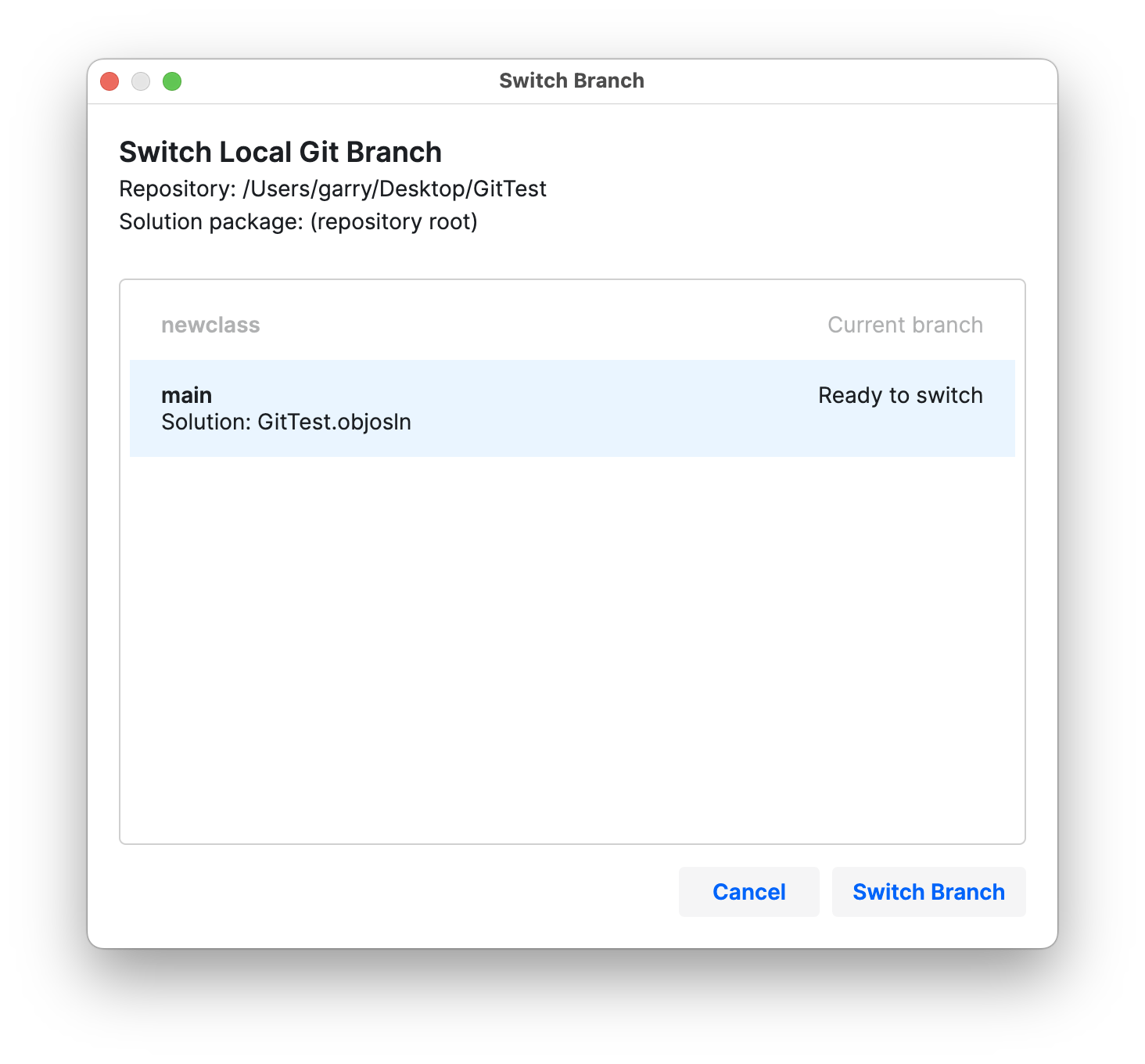
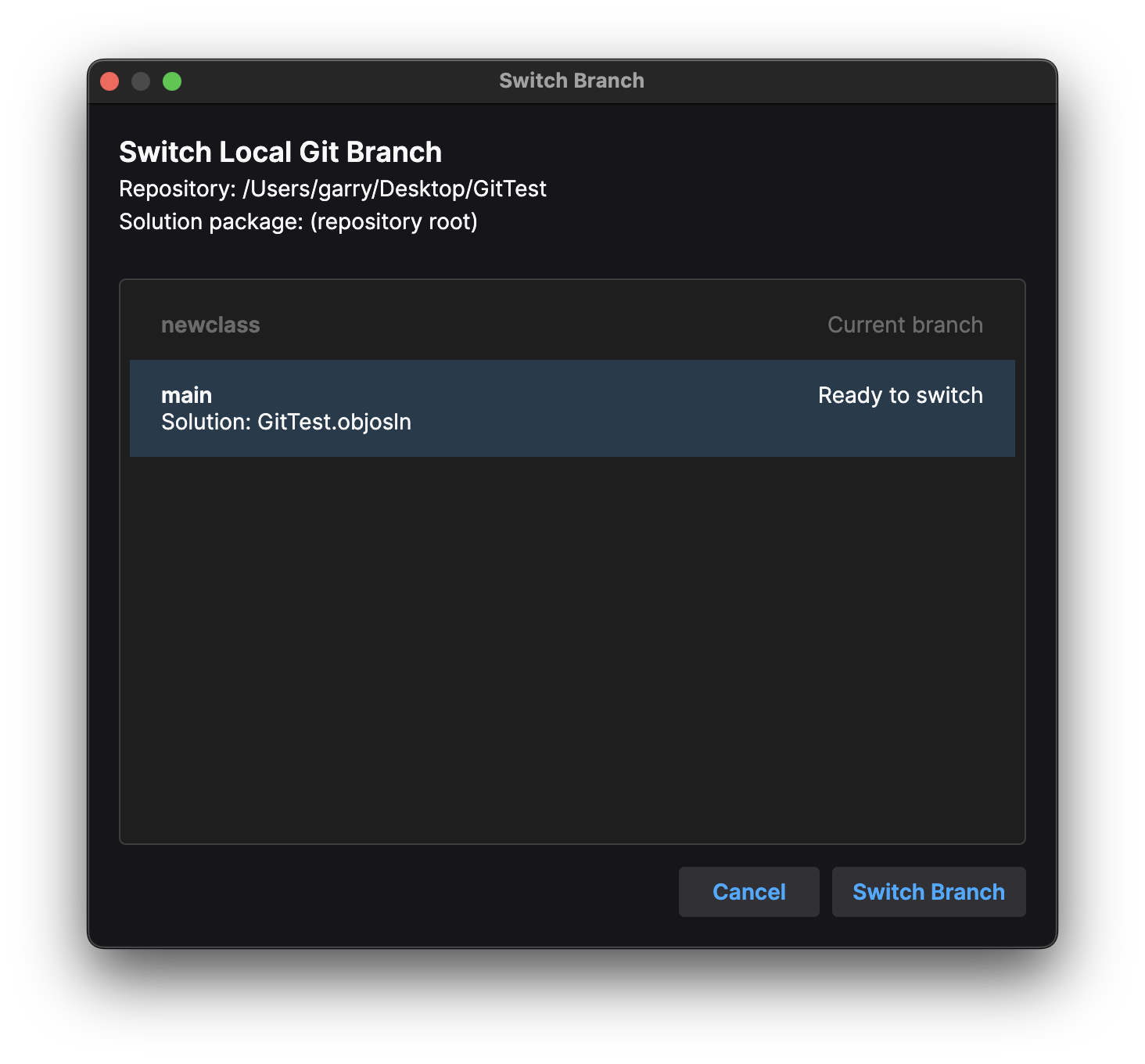
Local branch workflows are built in too. You can create a branch at the current commit and switch to it immediately, carrying your unstaged work with you. You can also choose between existing local branches directly from the status-bar branch control or the Source Control menu. Before switching, Studio checks that the whole repository is clean and that the target branch contains a valid version of the open solution. After the switch it reloads the checked-out solution and restores surviving tabs, selections and caret positions.
A lot of care has gone into preventing version control from becoming a new way to lose work. Studio detects when Git, a text editor or another external tool changes the solution on disk and will not silently overwrite it. Branch switching never forces a checkout, discards changes or creates a hidden stash. If Studio cannot prove that an operation is safe, it stops and explains what needs attention.
This first version is intentionally focused on dependable local Git workflows. It does not try to replace a full Git client: cloning, remotes, authentication, fetch, pull, push, merge, rebase, conflict resolution, history and tags remain the job of your preferred external tool. The two work comfortably together, with Studio concentrating on the source-level operations it understands particularly well.
Git support is entirely optional and is available free to every Studio user. Portable solutions and solutions outside a repository continue to work exactly as before.
Conditional compilation: control what gets built
Objo now supports conditional compilation, allowing source code to be included or excluded before it's parsed, checked or compiled.
@If DebugBuild Then
	Print("Extra development diagnostics")
@Else
	Print("Normal application output")
@EndIf
DebugBuild is True when using Run, Debug or Profile from Studio, and False when building or publishing an app. Unlike an ordinary If statement, inactive branches are completely absent from the compiled bytecode, including their declarations, strings and type references.
Conditions can also use your own compile-time constants, making them useful for feature flags and build variants:
Const INCLUDE_DIAGNOSTICS As Boolean = True

@If DebugBuild And INCLUDE_DIAGNOSTICS Then
	DebugReporter.DumpState()
@EndIf
The full syntax includes @ElseIf and @Else, blocks may be nested, and Studio provides dedicated syntax highlighting and formatting for the new directives.